
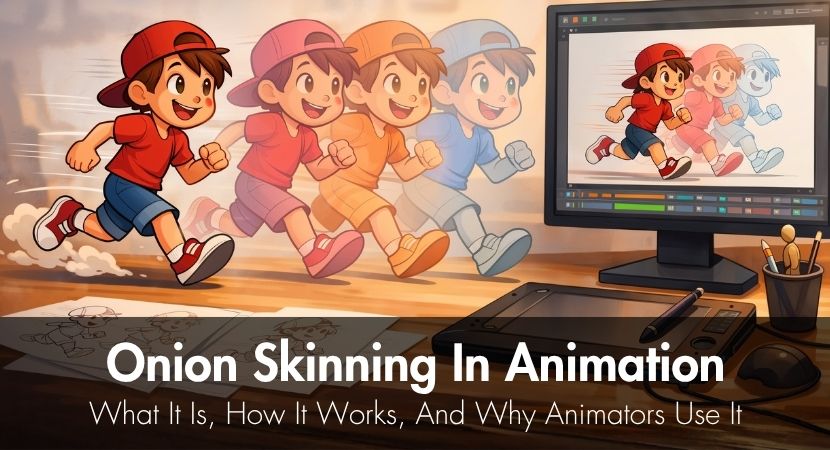
Every animator has experienced that moment of uncertainty when they lift their stylus and question whether their current drawing truly flows from their previous one. Does the arm extend too far forward? Is the spacing incorrect? That's why onion skinning exists. You've come to the right place if you've ever wondered what this method is and how to apply it effectively across various animation styles and tools.
The method dates back almost a century. It was discovered by Disney animators in the 1920s when they stacked transparent paper on a lightbox and allowed the light to pass through earlier drawings to inform the subsequent ones. Except for the digital controls, customizable frame range, and color-coded ghost frames, contemporary animation onion skin tools precisely mimic that physical method. From hand-drawn cels to stop motion tools like Dragonframe, Blender, Adobe Animate, and TVPaint, the idea remained constant.
This article explains what onion skin animation is, how it functions with various tools and workflows, and above all, how to use it wisely instead of just turning it on all the time and hoping for the best.
What Is Onion Skinning in Animation?
Onion skinning is an animation technique that lets you see faint, see-through copies of past and future frames at the same time as the frame you are currently working on. It works as a visual guide, making it easy to track movement, keep proportions consistent, and draw fluid transitions between poses. It works as a visual guide, making it easy to track movement, keep proportions consistent, and draw fluid transitions between poses.
You might also hear it referred to as ghosting or ghost frames. The terminology shifts depending on the software and the animator using it, but the underlying idea is always the same. In most software, past frames appear in one color (commonly blue or red) and future frames in another (often green or orange), making the direction of motion immediately readable at a glance.
It is worth noting that onion skinning is not a passive feature. The settings, like the frame range, opacity, color coding, and which frames are displayed, need to be actively adjusted for each type of animation sequence. Leaving everything on default is how onion skinning goes from being genuinely useful to being background noise.
This brief explanation from the Start Animating channel does a fantastic job of breaking down the fundamental concept of onion skinning for anyone unfamiliar with it. It explains what it is, where it originates, and how it applies to both traditional and digital workflows. Before reading the rest of this tutorial, it's worth watching.
Why Is It Called Onion Skinning?
The name dates back to a much earlier period. Similar to the transparent layers of an onion, Disney animators in the 1920s sketched on thin, translucent paper cels that, when placed atop a lightbox, made earlier designs faintly visible through the present sheet.
Even though there is no longer any paper involved, the phrase was adopted when animation transitioned to computer software decades later.
How Does Onion Skin Animation Work?
Onion skinning works by overlaying faint, ghosted copies of the neighbouring frames, the ones just before and after your current frame, so the surrounding motion stays visible as you draw. In digital software, these appear as semi-transparent or colour-coded overlays. Seeing the frames together lets you check spacing between poses, follow smooth movement arcs, and draw accurate in-between frames without scrubbing back and forth.
To provide you with a real-time visual reference for the motion route your character is following through time, onion skin animation renders faded copies of neighboring frames below the active frame in your viewport. You can view where your character was one, two, or three frames ago while drawing your current pose. Depending on your settings, you can also see where they will be a few frames ahead. You can make consistent decisions about direction, angle, and distance without having to guess thanks to this reference.
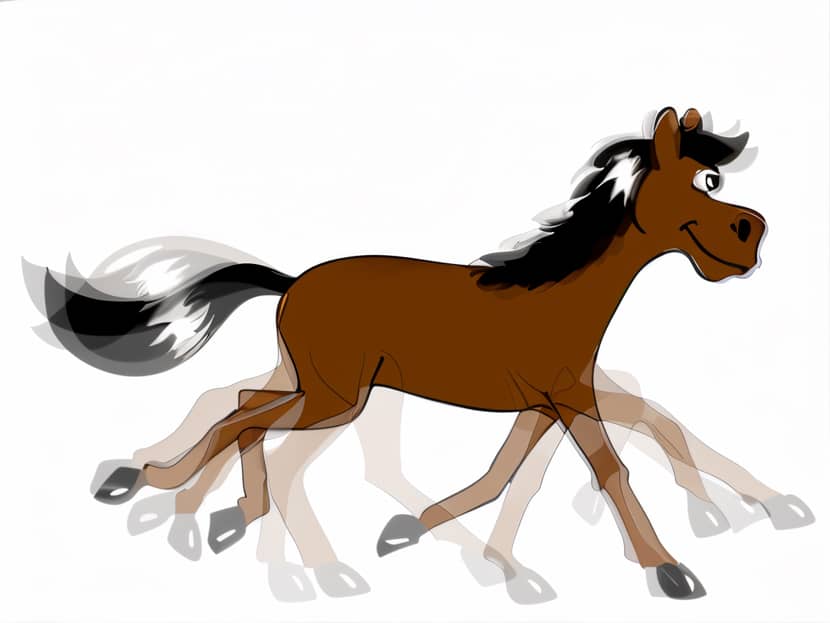
This is really important because of the way we view motion. Persistence of vision is the term for the phenomenon whereby our visual system fills in the blanks between a succession of motionless images that our brains perceive as movement. The animator can intentionally mold what the viewer's brain will perceive during playback because onion skinning makes that gap-filling process visible to them during development.
Using Onion Skinning for Inbetweening
Onion skinning becomes very crucial when it comes to inbetweening, or drawing the frames that fall between two important positions. The main poses are defined by keyframes, and the transitions that give them life are produced by inbetweens. You can see just where your new drawing should fall between two preexisting positions when onion skinning is enabled. The solution is clear from the ghost frames; there is no room for doubt.
Key Takeaway: Onion skinning helps animators see exactly where each new drawing should be placed between key poses.
Why Onion Skinning Is More Than Just a Visual Aid
It would be simple to write off onion skinning as just a practical feature that allows you to see adjacent frames. But skilled animators consider it as something closer to a motion control system. It involves more than merely looking at the past; it involves employing that visual knowledge to intentionally plan motion.
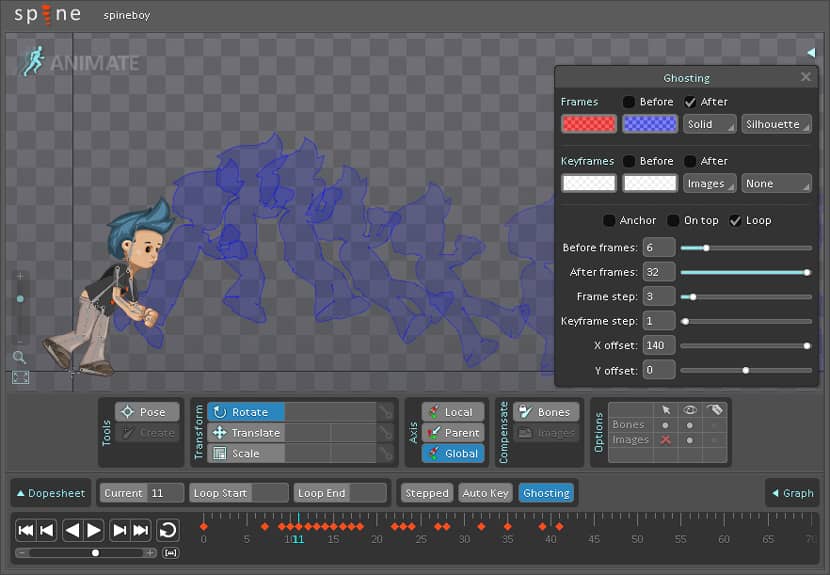
Image Credits: esotericsoftware.com
You are essentially performing a real-time timing consistency check when your ghost frames are visible. You can quickly determine whether an arc that was flowing smoothly has suddenly broken or whether your spacing is jumping wider than it should. These are the kinds of mistakes that are simple to overlook when concentrating on a single frame, but they become clear as soon as you have context. Early error-detection is not only beneficial but also essential for intricate scenes with several actors or moving objects.
Key Takeaway: Onion skinning is a motion control system, not just a way to see frames.
Traditional vs Digital Onion Skinning Techniques
A lightbox, clear paper, and a steady hand made up the elegantly straightforward old process. Animators would trace the movement's outline by laying their current sheet over the earlier drawing and making minor adjustments to advance the position. You could feel the layers' actual weight, which gave it a tactile, instantaneous quality.
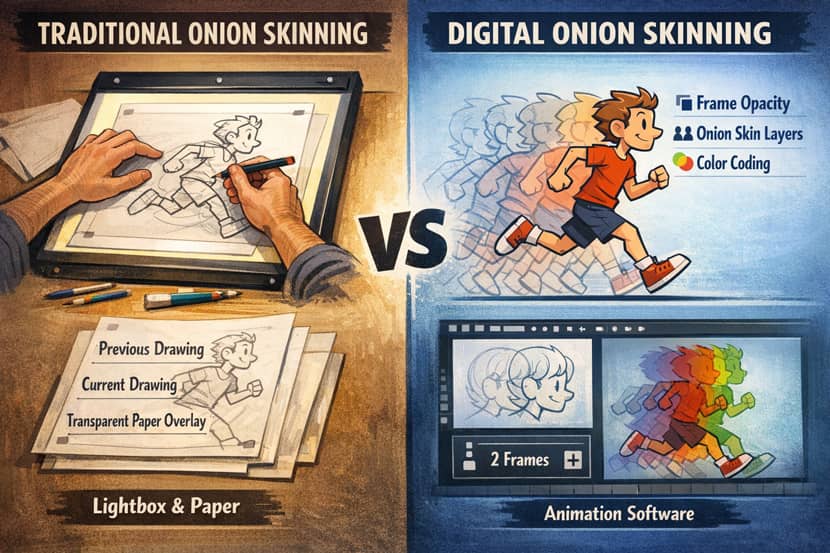
The digital equivalent further expands on the same idea. With a single keyboard, modern software allows you to manage the precise number of frames that show as ghosts, modify their opacity, give past and future frames different colors, switch to outline-only mode when the detail gets visually loud, and turn the entire system on or off. You can adjust the precise amount of context required for a particular image, from a six-frame spread to follow a full running stride to a narrow two-frame window for a delicate face expression. The controls have grown much more accurate, but the fundamental idea hasn't altered in a century.
Onion Skinning in Animation Software
To see where you've come from and where you're heading in a single working view is the fundamental feature shared by all major animation tools. The options and the degree of control you have over which frames are displayed and how they look vary depending on the software. You can go beyond the default settings and use the function with genuine intent if you comprehend how your own tool is implemented.
2D Animation Software
With its color-coded past and future frames, outline mode that reduces visual clutter on complicated scenes, and customizable frame ranges, Adobe Animate has long been the industry standard for 2D digital animation. In a compositing approach that many artists are already familiar with, Photoshop's Video Timeline also allows onion skinning for frame-by-frame animation.
Outside of the Adobe ecosystem, TVPaint has gained a devoted following in professional studios due to its versatility, Clip Studio Paint has become a favorite for its per-layer onion skin controls, and Procreate Dreams brings onion skinning to a touch-based workflow that, once you get used to it, feels genuinely intuitive.
3D and Hybrid Software
As a 2D sketching tool within a 3D environment, Blender's Grease Pencil occupies an intriguing middle ground with adjustable onion skinning. When animating a character with distinct layers for the body, hair, and accessories, it is very helpful to be able to display ghosts based on keyframes alone, all frames, or a manually chosen set, with visibility regulated by layer.
Blender provides the Onion Skin for Meshes extension for 3D mesh animation, which creates ghosted representations of animated 3D models so you can see where a character's body was in earlier frames. Maya's Ghost Selected function for 3D character performance meets a similar need. Onion skinning becomes a real-world alignment tool in stop motion when specialized software such as Dragonframe and Stop Motion Studio superimposes the previous frame capture on top of the live camera feed.
Key Takeaway: All major animation software includes onion skinning, the core function is the same across tools.
When to Use Onion Skinning: Practical Animation Scenarios
You shouldn't run the onion skinning feature at full power for every photo. Knowing when to turn it off completely, when to pull it back, and when to ratchet it up are all important aspects of using it effectively.
Walk Cycles, Lip Sync, and Action Sequences
Because you need to view the entire stride pattern and track where the feet make contact with the ground throughout the entire cycle, walk cycles benefit from a larger frame count, usually four to six frames. Action scenes function similarly; in order to properly form a character's punch or jump, the arc of the motion must be shown across multiple frames simultaneously.
Lip sync presents a distinct difficulty. A reduced frame count, often just one or two frames in either direction. It keeps the reference tight without causing visual confusion between identical mouth forms that are intended to be distinct, since lip shapes change quickly and the differences between adjacent frames can be slight.
Onion Skinning for Stop Motion and Rotoscoping
Onion skinning addresses a basic physical issue in stop-motion animation: the animator must reposition a puppet without being able to observe its precise location in the previous frame. That gap is filled by the software overlay, which enables the animator to perfectly align the puppet before pressing the shutter.
Similar to onion skinning, rotoscoping, which involves tracing over live-action footage to produce animation, uses the original video behind the drawing layer to keep each traced frame rooted in the reference's actual movement. Rotoscoping was a fundamental visual technique employed in movies such as A Scanner Darkly (2006), Loving Vincent (2017), and the television series Undone (2019–2022). This type of overlay reference allowed for frame continuity.
How Onion Skinning Helps Apply Animation Principles
Three of the most crucial animation concepts, timing, spacing, and arcs, are instantly visualized through onion skinning. The key to turning the feature from a passive display into an active quality check that runs during the full animation process is knowing how to interpret each one from your ghost frames.
Checking Timing, Spacing, and Arcs
The two factors that most directly affect whether animation feels mechanical or alive are timing and spacing. The number of frames that pass between poses determines timing; fewer frames indicate faster activity, whereas more frames indicate slower action. With onion skinning, you can count the visible ghost frames between two spots and immediately test whether the pace matches what you planned.
The gap between those ghost frames is known as spacing; close ghosts denote gradual, decelerating movement, whereas wide-apart ghosts imply quick, accelerating motion. The kind of organic ease-in and ease-out that makes animation feel physically plausible rather than robotically linear is made possible by this visual input.
Key Takeaway: Onion skinning makes timing, spacing, and arc problems visible before you hit play.
Onion Skinning vs Motion Blur: What's the Difference?
Animators who are new to the production process frequently ask this issue, and it is important to provide a clear answer. As a creativity tool, onion skinning is a feature of your animation program that is only visible to you during production and vanishes when you export your work. To assist you in making better drawing selections, it displays distinct, transparent duplicates of nearby frames. On the other hand, motion blur is a visual effect that is applied to the final animation; it is a part of the final rendered output that viewers see and mimics how a camera records fast-moving subjects. Motion blur can be used in rendering to give the animation a cinematic feel when onion skinning is used to create a good animation.
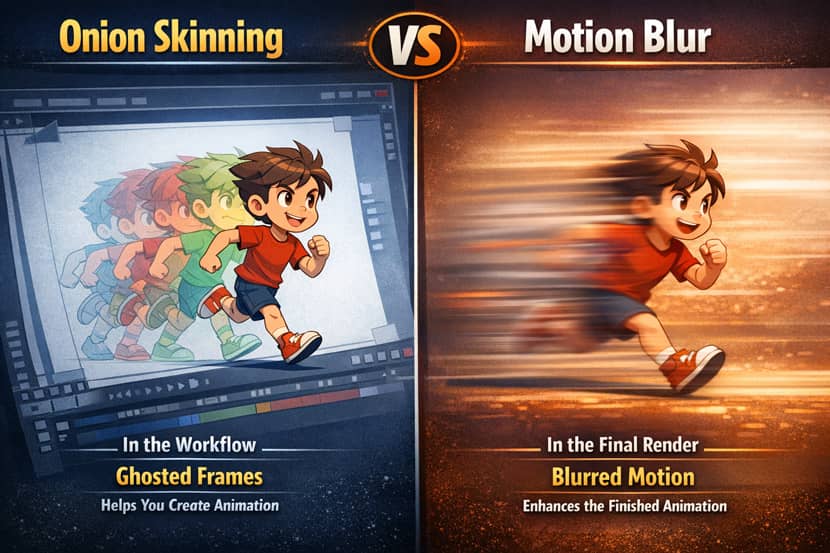
At RebusFarm, we render plenty of animation projects that use motion blur as part of their visual language, and the quality of those renders always depends on the underlying animation being well-constructed, which is exactly what onion skinning helps achieve.
Key Takeaway: Onion skinning helps you create animation; motion blur is an effect applied to finished animation.
Common Onion Skinning Mistakes and How to Fix Them
Common Onion Skinning Mistakes and How to Fix Them
The most frequent issue is probably displaying too many ghost frames at once. The reference becomes useless when there are twelve overlapping transparent graphics in your viewpoint. It's better to start with two or three frames and increase only when you actually need extra context. On the other hand, if you display too few frames, you lose the necessary motion context; four to six frames is usually the appropriate range for walk cycles and action sequences.
Ignoring color coding is another habit worth breaking. The majority of software allows you to give previous frames a particular color and subsequent frames a different color. When you are deep in a complex sequence, high contrast options—blue for the past, red or green for the future—make it instantly apparent which way you are looking in time, which is more important than it might seem.
It's a subtle but effective trap to use the same settings for every scene. The requirements of a high-energy action sequence and a delicate lip sync are entirely different. Clarity and speed are enhanced by changing the arrangement of your onion skin at the beginning of each picture.
Lastly, it's really crucial to occasionally remove the onion skin and look at your current frame alone. You may grow so used to the ghost overlay that you are unable to see your own drawing clearly. No amount of ghost frames can completely replace the sensation of seeing your animation move, therefore always go through the timeline to verify actual playback.
Frequently Asked Questions.
What is onion skin in animation in simple terms?
A feature called "onion skinning" allows you to design smooth, consistent motion by displaying faded copies of neighboring frames next to your current frame. This allows you to see where your character was and where they are going.
Does onion skinning work for 3D animation?
Yes, however, there are differences in how it's implemented. Maya features a ghosting capability for 3D characters, Blender's Grease Pencil has strong onion skinning built in, and Blender's Onion Skin for Meshes extension gives a comparable overlay function for mesh-based 3D animation.
How many onion skin frames should I display?
For walk cycles and action sequences, four to six frames give you enough context to track motion arcs. For lip sync or subtle facial animation, one to two frames is usually cleaner and easier to read.
Can I use different colors for past and future frames?
Yes. In most animation software, you can assign different colors to past and future frames, and you can usually customize those colors in the settings
Is onion skinning useful for beginners?
Absolutely. It eliminates most of the uncertainty associated with learning animation in the early stages by making the spatial link between frames apparent rather than abstract.
Does onion skinning affect rendering or playback performance?
No, onion skinning doesn't affect your final render output or end viewers' playback performance; it just occurs in the viewport during the construction process. It is only an authoring tool.
Thank you for reading. Onion skinning is one of those tools that rewards the animators who take the time to actually understand it and we hope this guide gave you exactly that. Now go make something move!
Kind regards & Keep rendering! 🧡
About the author
Vasilis Koutlis, the founder of VWArtclub, was born in Athens in 1979. After studying furniture design and decoration, he started dedicating himself to 3D art in 2002. In 2012, the idea of VWArtclub was born: an active 3D community that has grown over the last 12 years into one of the largest online 3D communities worldwide, with over 160 thousand members. He acquired partners worldwide, and various collaborators trusted him with their ideas as he rewarded them with his consistent state-of-the-art services. Not a moment goes by without him thinking of a beautiful image; thus, he is never concerned with time but only with the design's quality.